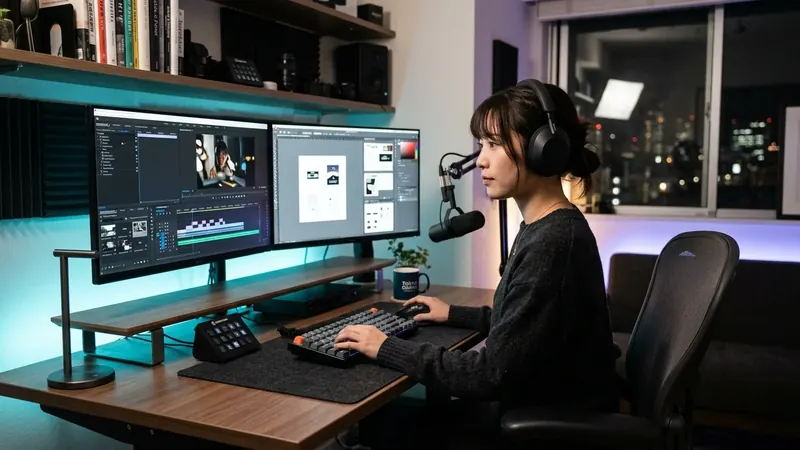
A video editor, motion designer, Houdini artist and TouchDesigner operator may all describe themselves as creators. But the computer each of them needs can be completely different.
The first question should not be: “Which creator PC should I buy?”
It should be: “Where does my actual workflow become slow, unstable or impossible?”
For one person, the bottleneck is GPU VRAM. For another, it is system memory. For another, storage throughput. And for real-time installations, the deciding factor may be physical display outputs, capture cards or PCIe expansion rather than benchmark performance.
This guide helps you choose the computing resources first — and the PC brand second.
The 30-Second Answer
If you want a fast filter before analyzing component specifications, use this as a first roadmap:
| Your main workflow | Start by prioritizing |
|---|---|
| Premiere / DaVinci Resolve video editing | Balanced CPU + GPU, system RAM, fast NVMe, codec support |
| After Effects / Motion Graphics | CPU, system RAM, fast cache storage, then GPU |
| Blender GPU rendering | GPU compute + VRAM |
| Houdini / VFX simulation | System RAM + CPU, then GPU according to solver / renderer |
| TouchDesigner / Live Visuals | GPU + VRAM + physical I/O + sustained stability |
| Unreal Engine | GPU / VRAM + CPU compile performance + system RAM |
| Mobile creator workflow | Display quality + performance + memory + ports + battery |
| AI + creative work on one machine | Software compatibility + VRAM / memory architecture + creator workload |
Important: These are planning priorities, not universal hardware requirements. The correct system depends on your projects, resolution, software, plugins, codecs, scene size, output topology and delivery requirements.
The CORE SPEC Rule
Before browsing product catalogs or retailer sales, answer these foundational questions:
Which applications do I actually use day-to-day?
What actually slows me down or causes out-of-memory errors today?
Does the workload depend primarily on CPU, GPU compute, VRAM or system RAM?
How large are active project files, geometries, textures and caches?
What camera codecs, render engines and third-party plugins do I rely upon?
Do I need video capture cards, SDI, multiple physical displays or high-speed storage?
Is this a fixed studio workstation, a mobile production laptop or a live venue installation?
How many hours must the machine run under continuous full load without thermal throttling?
A single synthetic benchmark score cannot answer any of those operational questions.
A Creator PC Is Not a Hardware Category
Manufacturers market computers under diverse labels:
These category names can be useful for navigation inside an online store. But they do not define whether a machine fits your production requirements:
- Gaming PCs with an appropriate CPU, GPU, memory and storage configuration can also work well for Blender, Unreal Engine or Premiere workflows.
- A creator laptop may be the better choice when color-accurate field monitoring, client presentations and mobility are part of the workflow.
- Professional workstation GPUs may offer limited benefit when the applications and workflows you use do not require their specific features, memory capacity, certifications or drivers.
1. Video Editing: Balance Matters More Than One Component
Video editing is fundamentally a multi-subsystem balance problem. Your timeline experience does not depend on a single halo GPU; it depends on how smoothly several components interact:
Adobe currently recommends at least 32GB of system RAM for Premiere Pro workflows on Windows / Intel systems and highlights GPU memory, CPU capabilities and high-speed storage as essential pillars. Its technical guidance also highlights high-speed NVMe storage for application cache, scratch disks and active media libraries.
Consequently, spending the bulk of a workstation budget on a flagship GPU while compromising on system RAM or SSD speed is a poor allocation of funds.
Think About the Media First
The label “4K editing” can represent vastly different hardware stresses depending on the underlying format:
- H.264 / H.265 (HEVC): Highly compressed long-GOP codecs. Hardware decode support such as Intel Quick Sync, dedicated GPU media engines or Apple Media Engines can substantially improve playback and timeline responsiveness for supported H.264 / H.265 formats.
- ProRes / DNxHR: Intra-frame codecs. These intra-frame formats are often easier to decode than highly compressed long-GOP codecs, but higher-bitrate media can place greater demands on storage throughput.
- RAW Footage (REDCODE, BRAW, Canon RAW): RAW workflows can place significant demands on decode performance, GPU acceleration, memory and storage depending on the camera format, resolution and software.
- Multi-Camera Streams & Heavy Color: Can increase decode, GPU, system-memory and storage demands, especially with multiple high-resolution streams and heavy effects.
Dedicated Media Engines Matter
Modern desktop architectures include dedicated silicon blocks specifically designed to encode and decode common video compression formats without burdening primary 3D graphics pipelines.
For example, current Mac Studio systems (featuring M5 Max and M5 Ultra) integrate dedicated hardware acceleration for H.264, HEVC, ProRes, and ProRes RAW, alongside specialized video encode and decode engines. While a Mac is not universally faster for every video project, these dedicated media engines can improve performance and efficiency for supported codecs and workflows.
2. After Effects and Motion Graphics: RAM Is Part of Performance
Motion graphics software behaves fundamentally differently from traditional video editing timelines. After Effects calculates individual frames, caches them uncompressed into system RAM, and replays them from memory:
For Motion Graphics, Think in This Sequence:
Composition Complexity → System RAM → Cache Storage → CPU Performance → GPU
Adobe's current technical requirements for After Effects list 16GB RAM as a baseline, but recommend 32GB or more for 4K and higher-resolution compositions, with 8GB of GPU memory recommended for Windows systems.
In real-world motion design, RAM capacity affects how much preview data can remain cached, although actual preview duration also depends on resolution, bit depth, composition complexity and other memory use. A faster GPU cannot compensate when system RAM is exhausted or disk caching creates timeline stutter.
3. Blender: Rendering Changes the Equation
Blender places completely different demands on a computer depending on whether your work centers on interactive modeling or offline GPU rendering:
- Interactive 3D Modeling & Animation: Depends on CPU responsiveness, viewport GPU performance, scene complexity and available system memory.
- Cycles GPU Rendering: Cycles GPU rendering stresses GPU compute and memory, using supported backends such as CUDA / OptiX, HIP, oneAPI or Metal depending on the hardware platform.
Blender's current official recommended hardware lists 32GB of system RAM and 8GB of VRAM. However, professional production scenes easily exceed these starting points:
When GPU-resident scene data exceeds available VRAM, behavior depends on the renderer, backend and hardware. Some configurations can use host-memory / out-of-core paths with a performance penalty, while others may encounter out-of-memory errors. For heavy 3D rendering, total VRAM capacity often matters more than incremental GPU core clocks.
4. Houdini: System Memory Can Matter More Than the GPU
SideFX Houdini is the ultimate example of why there is no generic “3DCG PC.” Depending on the discipline, the primary bottleneck moves across the motherboard:
SideFX currently requires 16GB of system RAM (32GB+ recommended, and strongly recommends 64GB for fluid simulations). On the graphics side, Houdini 22 currently requires 12GB or more of VRAM for its supported graphics configuration, while SideFX describes 16GB+ VRAM as ideal for larger GPU-accelerated simulations.
For memory-heavy simulations, increasing system RAM may provide more practical benefit than moving to a faster GPU while remaining memory-constrained.
5. TouchDesigner: Real-Time Changes the Buying Decision
A computer built for interactive installations or live stage visuals cannot be evaluated from rendering benchmark charts alone. Real-time graphics introduces an entirely different requirement:
Derivative currently lists 4GB of GPU memory as a minimum and recommends 8GB or more. On Windows, TouchDesigner requires a GPU and driver with Vulkan 1.1 support. On macOS, TouchDesigner uses Vulkan through MoltenVK on top of Apple's Metal graphics stack.
Key Evaluation Dimensions for Real-Time Systems
- Display Output Topology: How many discrete displays, projectors, or LED walls must be driven? Can the GPU and output hardware support the required number of displays at the project's target resolution and refresh rate?
- VRAM & Texture Caching: High-resolution textures, video frames, render targets, feedback buffers and other GPU resources can consume significant VRAM simultaneously.
- Hardware Video Capture & I/O: PCIe capture boards (Blackmagic DeckLink, Magewell), SDI, NDI network streams, Genlock sync, Spout and Notch playback blocks.
- Sustained Operational Stability: The system may need to sustain the required workload for long live sessions without thermal throttling or instability.
TouchDesigner officially supports AMD GPUs and Apple Silicon hardware natively. However, Derivative's documentation notes that several specialized Windows features remain NVIDIA-specific. Before selecting your operating system or GPU architecture, verify the specific TOPs, video encoders, hardware sync cards and external device integrations your installation requires.
6. Unreal Engine: GPU and CPU Solve Different Problems
Unreal Engine development is another discipline where “buy the best GPU” is dangerously incomplete advice. Developing inside Unreal divides workload stresses across distinct hardware components:
- Real-time viewport framerates
- Lumen real-time global illumination
- Nanite high-density mesh streaming
- Texture buffering and Movie Render Queue
- C++ source code compilation
- Shader preparation and background compilation
- Level asset baking and cook workflows
- Packaging and project building times
Epic Games' current recommended hardware guidelines specify Windows 11, 32GB of system RAM, 8GB or more of graphics RAM, and a DirectX 12-compatible GPU. Local compilation and build workflows can benefit from higher core counts; Epic currently describes 12–16 cores as a practical local-compile baseline when distributed compilation is not used.
A computer sized merely to play a finished Unreal game at 60 fps is very different from a developer workstation designed to build, compile, and package that game without hours of idle waiting.
RAM Planning for Creative Work
There is no single universal memory specification. Use this practical tier guide to plan system memory based on production complexity:
| Memory Class | Workload Scope | Operational Reality |
|---|---|---|
| 32GB Class General Starting Point |
Standard 4K video editing, Adobe Photoshop / Illustrator, Blender modeling, Unreal Engine development baseline. | Aligns with current recommended configurations for several major creative applications, including Blender, Unreal Engine and 4K+ After Effects workflows. |
| 64GB Class Production Workhorse |
Complex After Effects motion graphics, heavy 4K/8K timelines, Houdini simulations, large Blender scenes, multi-app workflows. | Provides additional headroom for larger projects, cache-heavy workloads and multiple creative applications running together. |
| 128GB+ Class Specialized Pipelines |
Massive Houdini fluid/pyro simulations, feature-film compositing, virtual production, overlapping local AI model execution. | Relevant to specialized high-memory workloads such as large simulations, compositing, virtual production or concurrent AI / creator workflows. |
VRAM Planning for Creative Production
Graphics memory (VRAM) should be sized around the largest GPU-resident dataset you anticipate loading simultaneously:
| VRAM Class | Workload Scope | Operational Reality |
|---|---|---|
| 8GB Class | Conventional video editing, 1080p/4K timelines without heavy noise reduction, entry-level 3D modeling, basic real-time graphics. | Matches the current recommended VRAM class for Blender, TouchDesigner and Unreal Engine, but production requirements can be substantially higher. |
| 16GB Class | Complex 3D scenes with 4K textures, GPU rendering, TouchDesigner multi-display outputs, Unreal Lumen/Nanite, AI-assisted tools. | Provides significantly more headroom for larger scenes, textures, real-time buffers and GPU-accelerated creative workflows. |
| 24GB–32GB+ Class | Heavy production Cycles rendering, complex GPU simulations, advanced real-time broadcast, local AI image generation (Flux, ComfyUI). | Provides substantial GPU-memory headroom for large scenes, GPU rendering, advanced real-time work and local generative AI. |
Storage Is Part of the Workstation
Creative production generates enormous volumes of data. Sizing storage purely by headline terabytes neglects read/write access patterns:
A top-tier GPU waiting on an overloaded SATA SSD or external USB drive cannot maintain timeline scrubbing speed. While a rigid three-drive configuration is not mandatory for every hobbyist, separating heavy disk caches from active project media can improve responsiveness and make heavy storage workloads easier to manage.
I/O Can Be More Important Than the GPU
One of the most critical differentiators between a generic desktop and a professional creative workstation is physical connectivity. If a computer cannot interface with your studio hardware, raw benchmark scores become irrelevant:
For live event staging, virtual production, broadcast suites, and TouchDesigner venues, physical I/O expansion frequently dictates the choice of workstation over sheer GPU performance.
Desktop, Laptop or Compact Workstation?
Match your physical workstation form factor to your operational environment:
Maximum upgradeability, full PCIe expansion for capture cards, highest thermal cooling ceilings, support for 128GB+ RAM, and sustained multi-hour render performance.
Best for: Fixed studio suites, heavy 3D rendering, complex VFX.Creator-focused laptops may combine high-performance mobile processors or GPUs with wide-gamut displays, creator-oriented ports and mobile form factors.
Best for: Directors, editors on the move, photographers, mobile visual artists.Small physical footprint, dedicated ProRes / HEVC hardware engines, and large unified-memory configurations (up to 512GB on M5 Ultra) with quiet operation. Mac Studio does not provide an internal PCIe expansion-card slot or a conventional user-upgradeable GPU path.
Best for: macOS-native video editing, audio production, high-memory pipelines.Which PC Brands Should Creators Consider in Japan?
Once your computing requirements, bottlenecks, and I/O needs are defined, several Japan-market computer brands offer dedicated creator-focused platforms:
DAIV is explicitly positioned around creative workflows including video editing, photography, graphic design, and 3DCG. A natural first stop if you prefer product selection structured around the creative applications you use every day.
Sycom positions its Lepton workstation line for video production, 3DCG, music production, streaming, and architecture. Offers detailed component-level configuration across areas such as cooling, power supply, memory and storage, depending on the model.

A practical option for straightforward, high-performance Windows systems. For creative work, evaluate configurations by actual CPU, RAM capacity, and GPU memory rather than assuming a performance system is unsuitable for creative tasks.

ASUS positions its ProArt ecosystem around video, 3D, and graphic design with creator-calibrated displays, dial controls, and sleek mobile form factors. Ideal when high performance must travel outside the studio.
For in-depth analysis of warranties, customization depth, and support across all eight domestic and global PC makers, see our dedicated PC Brands in Japan Guide.
Japan-Specific Buying Checks for Creators
When purchasing a workstation in Japan, verify these critical domestic purchasing details:
Domestic creator laptops default to JIS layouts. If you depend on muscle-memory shortcut mappings in Blender or After Effects, check whether US layout options are offered.
Windows 11 Home/Pro installed by Japanese BTO makers can be switched to English display language post-setup, but clean OEM image behavior varies.
Japan uses 100V AC power. High-wattage workstations with 1000W–1200W ATX 3.0 power supplies and dual high-end displays require checking your studio wall outlet circuit capacity.
Customized creator workstations usually require 3 to 14 business days for domestic assembly, quality testing, and delivery across Japan.
Six Practical Decision Paths
Start with a balanced CPU + GPU, 32GB–64GB of system RAM, and high-speed NVMe storage. Verify hardware decoding support for your specific camera codecs before investing in a flagship GPU.
Adobe recommends 32GB or more for 4K and higher-resolution compositions; 64GB can provide additional headroom for heavier projects and multitasking. Prioritize strong CPU performance and a fast NVMe disk cache, sizing the GPU around the specific accelerated plugins and effects you use.
Prioritize GPU performance and enough VRAM for your largest scenes. Blender's official recommended hardware starts at 8GB VRAM, while larger production scenes may justify 16GB or more.
Prioritize system memory and CPU performance around the simulation workload. SideFX strongly recommends 64GB for fluid simulations; larger production simulations may require more.
Prioritize discrete GPU VRAM, physical display output count, PCIe capture integration, and proven continuous thermal stability under live operating conditions.
32GB RAM is Epic's current recommended baseline; larger development projects and heavy multitasking may benefit from additional memory. Balance GPU VRAM for Lumen and Nanite viewport rendering with higher CPU core counts for shader compiling.
A Better Way to Buy a Creator PC
Follow this structured sequence to configure your workstation without paying for unnecessary marketing premiums:
Define the Creative Workflow
Identify your primary tools: Video, motion design, 3D modeling, VFX simulation, real-time graphics, or game development.
Identify the Actual Bottleneck
Determine whether your slowdown is CPU processing, GPU compute, VRAM capacity, system RAM exhaustion, or disk throughput.
Size Memory Appropriately
Do not size for an empty project. Size RAM and VRAM for real production compositions, high-resolution textures, and concurrent tools.
Check Software Architecture
Confirm API support: CUDA, OptiX, Metal, Vulkan, DirectX 12, or specific hardware-accelerated media encoders.
Design Storage & Physical I/O
Plan dedicated scratch cache disks, external drive connectivity, multi-monitor outputs, and PCIe capture boards.
Select the Form Factor
Choose between a full desktop workstation, a mobile creator laptop, or a compact system like Mac Studio.
Choose the Brand and Configuration in Japan
Select the manufacturer that provides the exact hardware configuration, power supply headroom, and warranty you need.
A Creator PC Is Designed Around a Creative Process
A creator PC is not a machine for “creative people.” It is a machine designed around a creative process.
The goal is not to maximize every specification on a spec sheet. The goal is to eliminate the specific bottlenecks between an idea → the working process → the final output.
A larger GPU is useful when the GPU is the bottleneck. More RAM is useful when memory is the bottleneck. A faster SSD is useful when storage is the bottleneck. More outputs are useful when the installation requires more outputs. Computing resources become valuable only when they match the work.
Workflow Guides
In-depth workstation sizing guides tailored for specialized creative software disciplines:
TouchDesigner PC in Japan
Design for the output, not the benchmark. Understand multi-display routing, video decode, and PCIe capture hardware.
Houdini Workstation in Japan
Size around the simulation. Balance CPU cooking, 64GB–128GB RAM for fluids, and Karma XPU GPU ray tracing.
Video Editing PC in Japan
Start with the codec, not the GPU. Hardware decode engines, 32GB+ RAM for 4K Premiere, and NVMe hierarchies.
Frequently Asked Questions
How much RAM does a creator PC need?
32GB is a useful starting point for many modern creative workflows. 64GB becomes increasingly useful for heavier motion graphics, 3DCG, Houdini, multitasking and higher-resolution production. Some specialized workflows can justify 128GB or more.
Is 8GB VRAM enough for creative work?
It can be enough for many workloads, and several major creative applications currently list approximately this class in their recommended specifications. Large 3D scenes, real-time graphics, GPU rendering and AI-assisted workflows may benefit from substantially more.
Is a gaming PC good for creative work?
It can be. Gaming and creative systems often use the same high-performance CPUs and GPUs. Check RAM capacity, storage, ports, cooling, display needs and expansion rather than judging the machine from the marketing category.
Is Mac Studio good for video editing?
It can be a strong option, particularly for workflows that benefit from Apple's dedicated media engines and macOS ecosystem. Software compatibility, storage strategy and required external hardware should still be checked.
Is NVIDIA better for creator PCs?
Not universally. NVIDIA is attractive for CUDA-dependent software, GPU rendering and some Windows-specific creative features. Apple Silicon, AMD and other architectures can be appropriate depending on the applications and workflow.
How much RAM do I need for Houdini?
It depends on the simulation and scene. SideFX currently recommends 32GB or more and strongly recommends 64GB for fluid simulations. Larger production workloads may require substantially more.
How much VRAM do I need for TouchDesigner?
Derivative currently lists 4GB as a minimum and recommends 8GB or more. Real-world requirements depend heavily on texture resolution, output count, video playback and the project structure.
Should I buy a desktop or laptop for creative work?
Choose a desktop when upgradeability, cooling, expansion and sustained performance matter most. Choose a laptop when portability and the built-in display are part of the daily workflow.
Next Steps
Now that you understand the computing bottlenecks of your creative workflow, continue your research: